Git & GitHub Bootcamp
Python Discord
What is Git?
A type of Version Control System
- Keeps track of changes in your code and who made the changes
- You take "snapshots" of the code, called commits
- Your project, and its entire commit history, is called a repository (repo)
- Your repo can keep track of different versions of your code with branches
Where does Git run?
- Git runs locally on your computer
- It keeps track of the history (and your git settings) in a folder called
.git - Your code can be hosted on a server (i.e. GitHub, GitLab) for collaboration or backups
- You can
pushyour updated code from your computer to that hosted environment - You can
fetchorpullthe latest code from that hosted environment to your computer
Let's Install Git
Linux
- Install with your distro's package manager
								apt-get install git
								pacman -S git
								dnf install git
Configuring Git
Now that we have git installed, we need to run a few commands to get it set-up.
						git config --global user.name "Your Username Here"
						git config --global user.email "your@email.here"
If you'd like to keep your personal email private, you can use your GitHub email for commits.
By default, git will use your default test editor for your commits. If you'd like to change it, this is the command to run.
git config --global core.editor $EDITORIn general, something like nano, notepad++, or vim is recommended.
Note: $EDITOR
is the path variable for your preferred editor
How do we use Git?
-
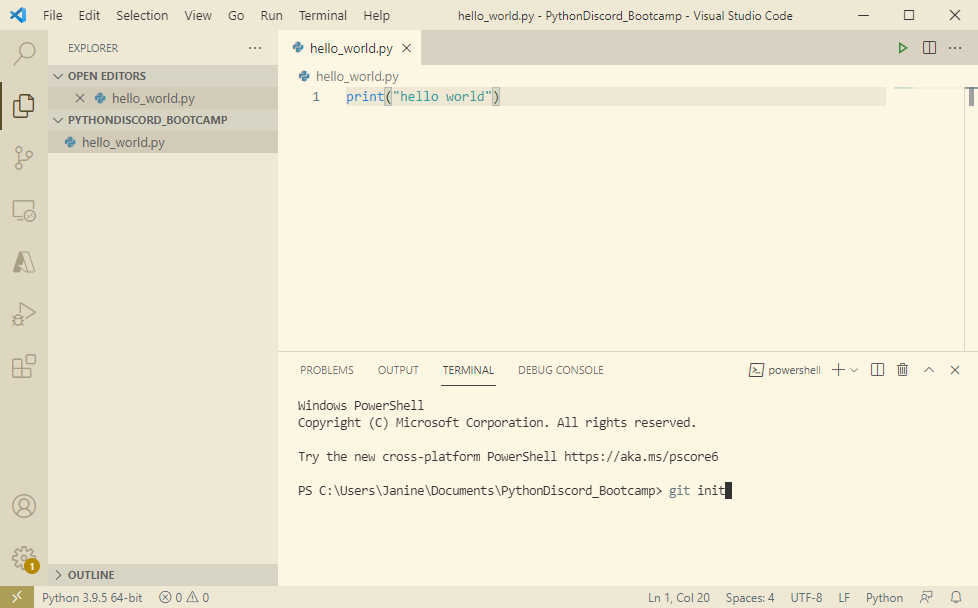
With a brand new project, the first thing we have to do is tell git we want to track
files at all.
git init -
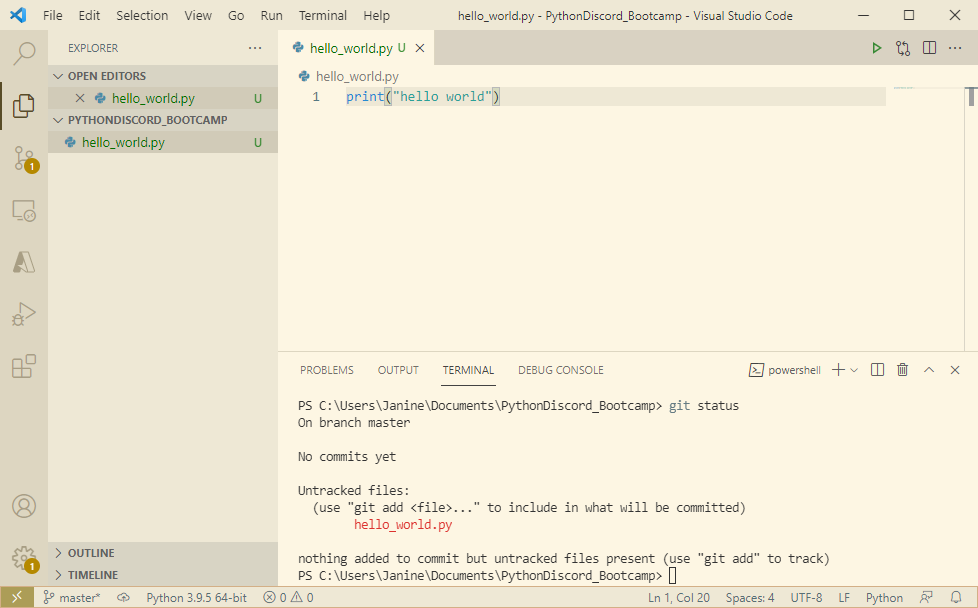
Let's see what's in our folder now
git status
Awesome! Git is now tracking this folder. Let's talk about commits now.
Let's make our first git commit
Committing a file is us telling git that we want to save the current code as a point in history.
- We add the files we want to commit to our staging area
To add all files:
To add specific files:git add .git add hello_world.py - Let's write our commit message, telling other people what is changing
This will open your editor to write a message:
For short and sweet commits you can do:git commitgit commit -m "Title" -m "Description"
VSCode and PyCharm have git interfaces if you'd rather not use the terminal, let's check out both of those now.
What happens when we git commit?
Committing a file is us telling git we want to save the current code as a snapshot. It's a point in history we can revisit if we have to.
What happens when we make a second commit?
                            print("hello world")
                            print("hello Python Discord!")
                            git add .
                            git commit -m "Add another hello print"
How does git branch work?
What is branch?
A branch is a different version of your codebase where you can have different commits and a different commit history.
Why do we use branches?
Branches allow you to work on different versions of your code and switch between them easily.
You can merge branches together and git will do the behind-the-scenes work of fitting together the different commits into one cohesive history.
Branching Strategies
There are different strategies you can use for creating and using branches. Each has their pros and cons. Which one you end up using depends upon your and your team's preference!
-
Trunks
If a person will generally work on features indepedentally, you can have each person use their own "trunk" branch. This branch will contain code for the current feature the person is working on. This works well if a person generally works on features sequentially.
-
Feature Branches
Each new feature gets its own branch! People can switch between branches to work on different features. Multiple people can even work on the same feature by working on the same branch (be sure to communicate often and well).
Git and GitHub
Git - version control; software responsible for tracking changes to your files
Handles committing, merging, branches, push, and pulling
GitHub - a git forge; online service to store git repositories
Has additional features such as:
- Forking - allowing others to make their own copy of a repository
- Pull Requests - Merge branches with the opportunity to review and request changes
Hooking up Git and GitHub
SSH Information
Using the SSH protocal, you can connect and authenticate to remote servers and services. With SSH keys, you can connect GitHub without supplying your username and password each visit.
Setup
Personal Access Tokens (PAT)
Are SSH tokens just a bit too much for you to deal with? You can use GitHub's Personal Acccess Tokens.
Setup
- Create a Personal Access Token
- Keep it in a safe and secure place, like a password manager or the Git Credential Manager
- Enter in the PAT when Git prompts you for a password
Tell Git to use the Windows Credential Manager
If you're having some trouble with Git and GitHub authentication and you're on Windows, you can run the following command to tell Git to use the Windows Credential Manager.
git config --global credential.helper manager-coreIf you use any git command after this, Windows will ask you to enter your GitHub login details. This will let you clone and push to any https git repo that you have access to!
Working with Git & GitHub
You know how to work with git locally and you have GitHub setup. Let's work with them together.
My tool of choice is GitHub Desktop. It has an amazing UI and makes it easy to manage multiple branches and Pull Requests.
Command Line Usage
We have changes we made locally that we want to push to GitHub so others can review it.
- Let's
pushto GitHub
git push <remote> <branch>git remote add <name> <url>
Someone made changes to the repository, let's pull down those changes so we can view it locally.
- The person who m ade the changes needs to
pushit to GitHub - We can
pulldown the changes to our local machine
git pull <remote> <branch>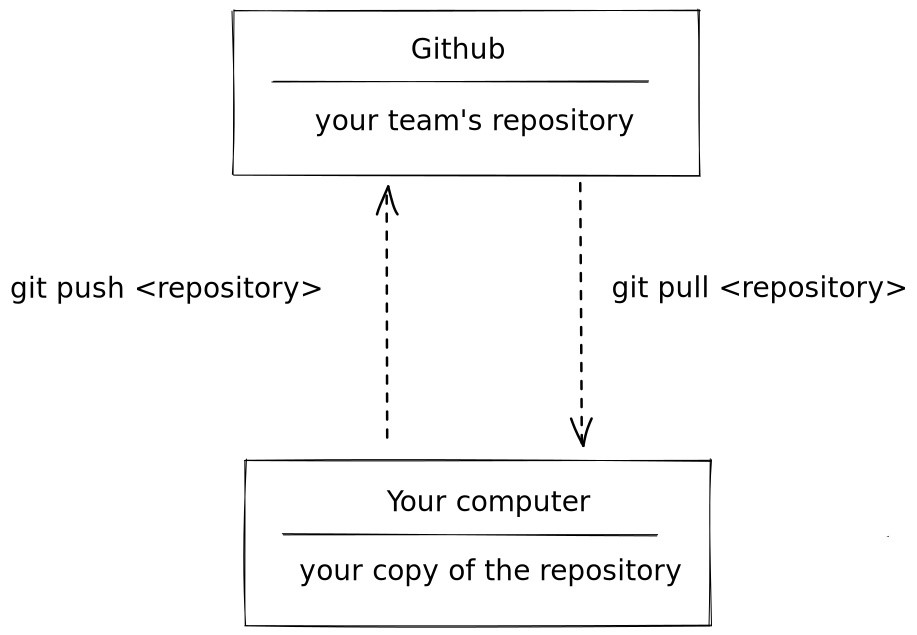
Additional Git Commands
The following commands we'll mention aren't required for basic git usage, but they're good to read up on if you have the time.
git rebase --interactive
Tailor the commit to your heart's content, have a guide next to you thoughgit add -p <file>
Stage sections of a file instead of all of it all at once
GitHub's Additional Features
Pull Requests & Reviewing
A Pull Request is a feature GitHub has to let you review code.
When someone wants to merge a branch into the "main" branch, GitHub lets you review the changes, with options to request changes.
Forking
Forking is a GitHub feature that allows you to clone an existing GitHub repository, but keep development separate from where you cloned it from.
For instance, Pillow is actually a fork of PIL. Pillow's development was based off of but is now separate from PIL's.
Note: For the Code Jam, you should not be forking your team's repository.
You should work directly on the repository your Team Leader will create.
Actions
GitHub Actions is GitHub's version of automatic Continuous Integration/Continuous Deployment.
You can configure GitHub to run certain workflows automatically based off of certain triggers.
Triggers like a new Pull Request, a new Issue is created, or a new release was just created.
Read more about GitHub Actions.
What if I don't like the command line?
You're in luck, because I don't like using the command line either!
What if I really like the command line?
Additional Resources & Reading
Guides
- Git & GitHub for Dummies - Get you up and running with Git & GitHub
- Git & GitHub Crash Course Video - FreeCodeCamp - Video Crash Course for Git & GitHub
- Git is Magic - A very in-depth guide
- Oh no, I have a git mess - A flowchart to get you out of even the trickiest of git messes
- Oh shit git - If you made a mistake, this will tell you how to fix it
- How to Write a Git Commit Message - How to write good Git commit messages for future you and your teammates/coworkers
Interactive Resources
- Oh my git - a game to learn Git
- Learn Git Branching
Further Reading & Cheatsheets
- Merging vs Rebasing - What's the difference and which should I do?
- git fetch vs git pull - What's the difference between the two? Read to find out!
- GitHub Education Git Cheatsheet
- Rebel Labs Cheatsheet
Let's practice!
- Ask for access to this repo: github.com/janine9vn/Git-GitHub-Bootcamp
- Clone the repo locally
- Make a new branch for whatever new feature you'd like to add (make sure to switch to that branch)
- Create a new file, or edit an existing one.
- Commit that change (make sure to write a good commit title!)
- Push your changes back to GitHub
- Open a pull request to merge into main on GitHub.com